What Is Git? A Beginner’s Introduction to Version Control
Software rarely stays unchanged. A developer creates a feature, fixes a bug, updates a dependency, removes old code, and experiments with a new idea. Every change creates a new state of the project, and without a reliable history, it becomes difficult to understand what changed, why it changed, or how to recover when something goes wrong.
Git solves this problem by recording meaningful versions of a project and giving developers tools to compare, organize, combine, and restore changes. This article introduces Git from the ground up. It explains the problem Git solves, how distributed version control works, the core concepts behind repositories and commits, and the important difference between Git and platforms such as GitHub.
What Is Version Control?
Version control is a system that records changes made to files over time. Instead of keeping only the current version of a project, it preserves a structured history of selected changes.
This history allows a developer or team to answer practical questions:
What changed between yesterday’s version and today’s version?
Who modified a specific part of the project?
Why was a line of code added or removed?
Which change introduced a bug?
Can we restore an earlier stable version?
Can two developers work on different features without overwriting each other?
Version control is most commonly used for source code, but it can also manage documentation, configuration files, infrastructure definitions, scripts, academic projects, and other text-based content.
The key idea is simple: instead of treating the project as a folder that is repeatedly copied and renamed, version control treats it as an evolving body of work with an inspectable history.
The Problem Before Version Control
Imagine that you are building a small application. At first, you keep one project folder. Before making a risky change, you duplicate it:
my-app
my-app-backup
my-app-final
my-app-final-2
my-app-final-working
my-app-final-really-working
This approach may appear safe, but it quickly creates several problems:
You do not know exactly what changed between folders.
You cannot easily identify who made each modification.
Multiple developers may edit different copies of the same file.
Combining changes becomes manual and error-prone.
Old folders consume space without providing a clear history.
Names such as
finalandlatesteventually lose their meaning.
A backup folder answers only one question: “What did the files look like when this copy was created?” A version control system answers much more. It records the sequence of changes, the reason for each recorded version, the author, and the relationship between different lines of development.
What Is Git?
Git is a free, open-source, distributed version control system. It tracks changes in a project and helps developers work independently or collaboratively without losing the history of their work.
Git was created in 2005 during the development of the Linux kernel. It was designed around goals such as speed, distributed work, support for parallel development, and the ability to handle large projects efficiently.
Today, Git is used in projects of every size, from a student’s first application to large systems maintained by teams distributed across multiple countries.
Git is not a programming language, framework, cloud service, or code-hosting website. It is a version control tool that can run on your own computer. You can use it locally without connecting to the internet and without creating an account on any hosting platform.
Why Is Git Called Distributed?
Git is described as a distributed version control system because each developer can have a complete local repository, including the project files and its history.
This is different from a traditional centralized model, where the main repository lives on one server and developers depend heavily on that server to inspect history or record changes.
With Git, many important operations are local:
Creating a commit.
Viewing previous commits.
Comparing versions.
Creating or switching branches.
Merging branches.
Restoring an earlier state.
Because these operations use the local repository, they are usually fast and can often be performed without a network connection.
A remote server is still useful for collaboration, backup, review, and automation, but the remote server does not replace the local Git repository. It is another copy that developers can exchange changes with.
Centralized vs Distributed Version Control
Understanding the difference between centralized and distributed systems helps explain why Git behaves the way it does.
Centralized Version Control
In a centralized system, a central server stores the primary repository. Developers retrieve files from that server and send their changes back to it.
This model can provide a straightforward source of truth and centralized administration. However, developers may depend more heavily on the server for history and collaboration.
Distributed Version Control
In a distributed system such as Git, each clone normally contains the repository’s history. Developers can work locally, record commits, create branches, and later synchronize their work with one or more remote repositories.
| Area | Centralized Model | Distributed Git Model |
|---|---|---|
| Repository history | Primarily stored on a central server | Available in each complete local clone |
| Local commits | Often depend on the central workflow | Created directly in the local repository |
| Offline work | More limited | Many operations remain available |
| Branching | Depends on the system | Designed to be lightweight and practical |
| Collaboration | Usually centered on one server | Can involve one or multiple remotes |
Distributed does not mean that every team must work without a central platform. Most teams still use a shared remote repository. The difference is that Git does not make that server the only place where useful repository operations can happen.
How Git Thinks About a Project
A useful mental model is to imagine Git as a timeline of meaningful project snapshots.
When you create a commit, Git records the state of the selected project files at that moment, together with metadata such as:
The author.
The date and time.
A message describing the change.
A reference to the previous commit or commits.
These connected commits form the project history.
Commit A → Commit B → Commit C → Commit DEach commit represents a known point in the evolution of the project. Git can compare these points and show what was added, removed, or modified.
This makes the history useful for more than recovery. It becomes technical documentation. A clean history can explain how a feature was built, why a decision was made, and when a problem first appeared.
Git Uses Snapshots, Not Just File Differences
Many beginners imagine version control as a collection of instructions such as “add this line” or “remove that line.” Git can display differences in that form, but its internal model is based on project snapshots.
When a commit is created, Git records references to the project content as it existed at that moment. Files that have not changed can be reused efficiently instead of being stored as unnecessary full copies.
This snapshot-oriented model is important because Git treats each commit as a complete, meaningful state of the project rather than only a disconnected list of edits.
What Is a Git Repository?
A Git repository is a project that Git is tracking. It contains the working files and a special internal directory named .git.
The .git directory stores Git’s internal data, including:
Commit history.
Branches and references.
Repository configuration.
Information about the staging area.
Objects that represent files, directories, and commits.
Without the .git directory, a folder is simply a normal folder. With it, the folder becomes a Git repository.
There are two common ways to obtain a repository:
Initialize Git inside an existing local project.
Clone an existing repository from another location.
The commands will be covered in detail in the next practical articles, but conceptually the difference is:
Initialize: Start tracking a project that already exists on your computer.
Clone: Create a local copy of an existing Git repository and its history.
The Three Main Areas in a Basic Git Workflow
Git becomes much easier when you understand that changes move through three main areas:
The working directory.
The staging area.
The repository history.
1. Working Directory
The working directory contains the files you can see and edit. When you modify a file, the change exists in your working directory but has not yet become part of a commit.
2. Staging Area
The staging area is a preparation layer. It lets you choose exactly which changes should be included in the next commit.
This is useful when you changed several files but want to create focused commits. For example, you might stage the bug fix first and leave an unrelated formatting change for a separate commit.
3. Repository History
When staged changes are committed, they become part of the repository history. The commit receives an identifier and becomes a recorded version that Git can inspect later.
The basic movement looks like this:
Working Directory
       ↓
   git add
       ↓
  Staging Area
       ↓
  git commit
       ↓
Repository History
This separation gives developers control over what enters the history. Git does not automatically record every saved file modification as a commit.
Modified, Staged, and Committed
Git documentation commonly describes tracked file content using three important states:
Modified: The file has changed in the working directory, but the new version has not been staged.
Staged: The changed version has been selected for the next commit.
Committed: The version is safely recorded in the local Git history.
Consider this simple example:
You edit
login.php. It is modified.You add the change to the staging area. It is staged.
You create a commit. It is committed.
Later, if you edit the file again, the new edit becomes modified while the previously committed version remains preserved in history.
What Is a Commit?
A commit is a recorded project snapshot. It is one of the most important concepts in Git.
A commit normally contains:
A reference to the project content.
The author and committer information.
A timestamp.
A commit message.
A connection to one or more parent commits.
A commit message should explain the purpose of the change rather than merely repeat the name of the edited file.
Weak message:
update filesStronger message:
Validate email addresses before creating user accountsThe stronger message helps future developers understand why the commit exists.
A practical commit should usually represent one logical unit of work. A focused commit is easier to review, test, understand, and reverse than a large commit containing unrelated changes.
What Is a Commit Hash?
Each commit receives a unique identifier, commonly displayed as a shortened sequence of characters.
a4c29f1This identifier allows Git to refer to a specific point in history. You can use it to inspect a commit, compare it with another version, create a branch from it, or restore related content.
Developers usually work with shortened commit identifiers in daily commands, while Git internally maintains the full object identifier.
What Is a Branch?
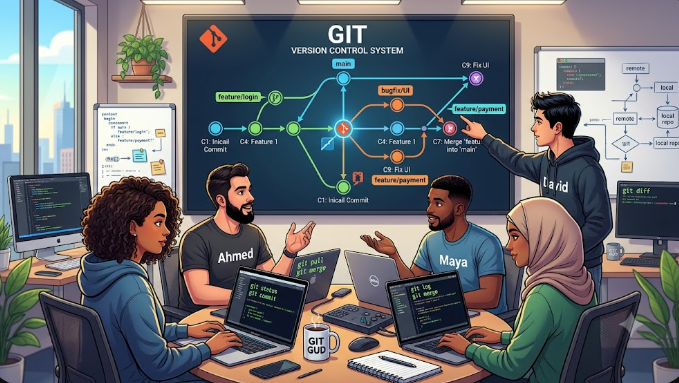
A branch is an independent line of development. It lets you work on a feature, bug fix, or experiment without immediately changing the main line of the project.
Imagine the project currently has three commits:
A → B → CYou create a branch and add two feature commits:
A → B → C
                   D → E
The main branch can remain stable while the feature branch develops separately. When the feature is ready, its work can be combined with the target branch through a merge or another integration strategy.
Branches are central to collaboration because they allow multiple changes to progress in parallel:
One developer works on authentication.
Another fixes a payment bug.
A third updates documentation.
The production branch remains protected.
Branching does not automatically prevent every conflict, but it organizes work so changes can be reviewed and integrated deliberately.
What Is HEAD?
HEAD is Git’s reference to the commit or branch you are currently working with.
In a normal workflow, HEAD points to the current branch, and that branch points to the latest commit on its line of development.
HEAD → feature/login → Commit EWhen you switch branches, HEAD moves to the selected branch. Understanding this concept becomes especially useful when you begin switching branches, restoring versions, rebasing, or working with detached states.
What Is a Merge?
A merge combines development histories. It is commonly used to bring completed work from a feature branch into another branch.
For example:
main:          A → B → C
                        feature/login:           D → E
After merging, the main line includes the feature’s work. Depending on the history, Git may move the branch pointer forward or create a dedicated merge commit.
A merge conflict can occur when Git cannot safely determine how competing changes should be combined. This commonly happens when separate branches modify the same part of a file in incompatible ways.
A conflict is not a Git failure. It is Git asking a developer to make a decision that cannot be made safely and automatically.
What Is a Remote Repository?
A remote repository is another Git repository that your local repository can communicate with. It is often hosted on a server or collaboration platform.
A remote makes it possible to:
Share commits with a team.
Retrieve changes created by other developers.
Maintain a shared repository.
Store a remote copy of the project history.
Trigger review and automation workflows.
Git commonly uses commands such as:
git fetchto retrieve remote information and changes.git pullto retrieve and integrate remote changes.git pushto send local commits to a remote repository.
These commands belong to Git itself. The remote repository may be hosted on GitHub, GitLab, Bitbucket, Azure Repos, a private server, or another Git-compatible service.
Git vs GitHub: They Are Not the Same
This distinction is essential:
Git is the version control system.
GitHub is a platform that hosts Git repositories and adds collaboration features.
You can use Git without GitHub. For example, you can create a local repository, make one hundred commits, create branches, merge them, and inspect the full history without ever creating a GitHub account.
GitHub becomes useful when you want features such as:
Remote repository hosting.
Pull requests.
Code review.
Issue tracking.
Project discussions.
Access management.
Automated workflows.
Release pages.
| Git | GitHub |
|---|---|
| Version control software | Repository hosting and collaboration platform |
| Can run locally | Primarily used as an online service |
| Tracks commits, branches, and merges | Adds pull requests, reviews, issues, and automation |
| Does not require GitHub | Uses Git repositories |
| Works with many remote services | One of several Git hosting options |
A helpful analogy is that Git is the engine that manages the history, while GitHub is a collaborative workspace built around repositories managed by that engine.
GitHub, GitLab, and Bitbucket
GitHub is not the only platform that can host Git repositories.
GitHub: Commonly used for open-source projects, portfolios, private repositories, pull requests, and integrations.
GitLab: Provides Git hosting, merge requests, project management, and integrated CI/CD capabilities.
Bitbucket: Provides Git repository hosting and is often used by teams working with the Atlassian ecosystem.
Azure Repos: Provides Git repositories within Azure DevOps workflows.
Self-hosted servers: Organizations can also host Git repositories on infrastructure they control.
The core Git knowledge remains transferable. Commands such as commit, branch, merge, fetch, pull, and push are Git concepts even when the surrounding platform uses different names for collaboration features.
A Simple Real-World Git Scenario
Assume that a team is building an online store. The main branch contains the stable application.
A developer receives a task: add coupon validation during checkout.
A reasonable Git-based process is:
Create a new branch for the coupon feature.
Modify the checkout code.
Test the validation logic.
Stage only the files related to the feature.
Create a focused commit with a clear message.
Push the branch to the shared remote repository.
Open a pull request or merge request.
Allow automated tests and reviewers to inspect the change.
Fix any problems identified during review.
Merge the approved feature into the main branch.
Git manages the commits, branches, and merge history. A hosting platform manages the review conversation, permissions, and automated checks around that Git history.
Why Developers Use Git
1. Reliable Project History
Git preserves recorded project states, making it possible to inspect how the project evolved.
2. Safer Experimentation
A developer can create a separate branch for an experiment without immediately affecting stable work.
3. Parallel Development
Multiple developers can work on separate tasks and integrate their changes later.
4. Easier Code Review
Git can show exactly what changed between commits or branches, which makes reviews more focused.
5. Faster Problem Investigation
Developers can inspect history, compare versions, and identify when suspicious behavior entered the project.
6. Better Release Management
Teams can mark important versions, maintain release branches, and trace deployed code back to specific commits.
7. Automation Integration
Repository events can trigger tests, builds, code-quality checks, security scans, and deployments through external platforms.
8. Useful for Solo Developers
Git is not only for teams. A solo developer benefits from history, safer refactoring, experimental branches, and the ability to restore earlier work.
What Git Does Not Replace
Git is powerful, but it is not a complete solution for every type of project data.
Git Is Not a Complete Backup Strategy
A remote repository can provide an important additional copy of source code, but Git should not be the only backup plan for databases, uploaded user files, server configuration, secrets, or production infrastructure.
Git Is Not a Project Management System
Git records project versions. Tasks, deadlines, discussions, sprint planning, and issue tracking usually belong to additional tools or hosting-platform features.
Git Is Not a Deployment System by Itself
Git can trigger deployment automation, but a production deployment also requires infrastructure, permissions, environment configuration, build steps, monitoring, and rollback planning.
Git Is Not Ideal for Every Large Binary Workflow
Git works especially well with text-based files. Large binary assets may require specialized extensions, separate storage, or a workflow designed for those file types.
Common Beginner Misunderstandings
“Saving a File Creates a Git Version”
Saving changes updates the working file. Git records those changes only after you deliberately stage and commit them.
“Git Automatically Uploads My Code”
Commits are local by default. They reach a remote repository only when you push them.
“Every Change Must Be One Commit”
You can organize related changes into focused commits. The staging area helps you choose what belongs in each commit.
“A Branch Is a Full Copy of the Project Folder”
A Git branch is a lightweight reference to a line of commits, not simply a manually duplicated folder.
“GitHub Owns Git”
Git is an independent open-source version control system. GitHub is one platform that provides services around Git repositories.
“Version Control Is Only Needed After the Project Becomes Large”
The best time to begin version control is at the start of the project. Even a small application benefits from a clean history.
Basic Git Vocabulary
| Term | Meaning |
|---|---|
| Repository | A project and its Git history |
| Working Directory | The visible files currently being edited |
| Staging Area | The prepared set of changes for the next commit |
| Commit | A recorded project snapshot |
| Branch | An independent line of development |
| Merge | The process of combining development histories |
| Conflict | A situation requiring manual integration decisions |
| HEAD | A reference to the currently checked-out location |
| Remote | Another Git repository used for exchanging changes |
| Clone | A local copy of an existing repository and its history |
| Push | Send local commits to a remote repository |
| Fetch | Retrieve remote changes without automatically integrating them |
| Pull | Retrieve and integrate remote changes |
| Tag | A named reference commonly used to mark a release |
A First Look at the Git Workflow
The following commands are only a preview. Installation, configuration, staging, and commits will be explained in depth in later articles.
# Create a new project directory
mkdir git-introduction-demo
cd git-introduction-demo

# Initialize a Git repository
git init

# Create a file
echo "# Git Introduction Demo" > README.md

# Inspect the repository state
git status

# Prepare the file for the next commit
git add README.md

# Record the staged version
git commit -m "Create project README"

# View the history
git log --oneline
Conceptually, this sequence performs five actions:
Creates a normal project folder.
Turns it into a Git repository.
Creates a project file.
Selects that file for the next snapshot.
Records the snapshot in history.
The important skill is not memorizing commands without context. It is understanding what each command changes inside the Git workflow.
What Should Be Stored in Git?
A repository should contain the files required to understand, build, and maintain the project, as long as those files are appropriate for version control.
Commonly committed files include:
Application source code.
Automated tests.
Documentation.
Dependency definition files.
Database migrations.
Configuration templates.
Infrastructure-as-code files.
Build and CI/CD definitions.
Files commonly excluded include:
Passwords and API secrets.
Local environment files containing credentials.
Temporary files.
Editor-specific cache files.
Generated dependency directories when the ecosystem does not require them.
Build output that can be reproduced.
Large local logs.
Git uses a file named .gitignore to define patterns for files and directories that should normally remain untracked.
Security: Never Commit Secrets
One of the most important Git habits is to keep secrets out of repository history.
Do not commit:
Database passwords.
Private API keys.
Cloud credentials.
Private SSH keys.
Access tokens.
Production environment files.
Deleting a secret in a later commit does not automatically erase it from earlier history. Once a secret has been committed or pushed, treat it as exposed: revoke or rotate it and then clean the history using an appropriate, carefully planned process.
Git Best Practices from the Beginning
Start version control when the project begins.
Create commits for meaningful units of work.
Write messages that describe the purpose of the change.
Review the staged changes before committing.
Use branches for features, fixes, and experiments.
Keep credentials and local environment secrets outside the repository.
Use a suitable
.gitignorefile.Synchronize with the team regularly.
Do not combine unrelated changes in one large commit.
Understand a command before using destructive options.
Is Git Difficult to Learn?
Git can feel confusing because several layers are introduced at once: the working directory, staging area, commits, branches, remotes, and hosting platforms.
The solution is to learn Git as a system rather than as a random command list.
A practical order is:
Understand the three areas: working directory, staging area, and repository.
Practice status, add, commit, and log.
Learn branches and merges locally.
Understand remotes, fetch, pull, and push.
Practice collaboration through pull requests or merge requests.
Study undo commands only after understanding what each one changes.
Move to workflows, rebasing, cherry-picking, hooks, and automation later.
Most daily development does not require every advanced Git command. A strong understanding of a smaller core command set is more valuable than memorizing dozens of commands without understanding their effect.
When Should You Use Git?
Git is appropriate for most modern software-development projects, including:
Web applications.
Mobile applications.
APIs and backend services.
Frontend projects.
Libraries and packages.
Automation scripts.
DevOps and infrastructure repositories.
Technical documentation.
Academic programming projects.
Personal learning projects.
Even when working alone, Git provides a disciplined way to experiment and recover. When working in a team, it becomes a foundation for review, integration, releases, and automated delivery.
Git Introduction Checklist
Before moving to the installation and configuration article, make sure these statements are clear:
Version control records meaningful project changes over time.
Git is a distributed version control system.
Git and GitHub are related but different tools.
A repository contains project files and Git history.
A commit is a recorded project snapshot.
The staging area prepares changes for the next commit.
A branch represents an independent line of development.
A remote repository is another Git repository used for sharing changes.
Commits are local until they are pushed.
Secrets should never be committed to a repository.
Frequently Asked Questions
Can I Use Git Without GitHub?
Yes. Git can be used entirely on your computer or with a private Git server. GitHub is optional.
Does Git Require an Internet Connection?
No. Local commits, branches, comparisons, and history inspection can work offline. Internet access is needed when communicating with an online remote repository.
Is Git Only for Professional Developers?
No. Students, researchers, technical writers, system administrators, and solo developers can all benefit from Git.
Does Git Save Every File Automatically?
No. Git records selected changes when you stage and commit them.
Can Git Restore Deleted Code?
Git can restore content that was previously committed. It cannot reliably recover work that was never recorded and has been permanently removed from the working directory.
Is a Git Repository a Backup?
It provides valuable project history, especially when copied to a remote location, but it should be part of a broader backup strategy rather than the only backup.
Which Hosting Platform Should I Learn First?
Learn Git fundamentals first. After that, GitHub is a practical starting point, but the same core Git knowledge can be used with GitLab, Bitbucket, Azure Repos, and private servers.
Conclusion
Git is a distributed version control system that turns a changing project into a structured, inspectable history. It allows developers to create meaningful snapshots, experiment through branches, compare versions, collaborate with teams, and recover from many common mistakes.
The most important concepts are not the commands themselves. They are the model behind the commands: files are modified in the working directory, selected through the staging area, and recorded as commits in the repository. Branches organize independent development, while remote repositories allow those histories to be shared.
Once this mental model is clear, Git becomes much less mysterious. The next step is to install Git, configure your identity and default settings, and prepare a clean environment for the first practical repository.
Official References and Further Reading